
Single App Login
Single App for your Personal and Small Business Accounts!
You can download and sign into a single mobile app to access both your Personal and Small Business accounts.
It only takes a minute to set up your accounts and we're here to walk you through, step by step. Let’s get started!
Setup Instructions to Save Usernames
1. If you've already downloaded the Stockman Bank app, please make sure it is updated to the latest version. If you do not have the app, download it from the App Store for Apple or Google Play for Android.



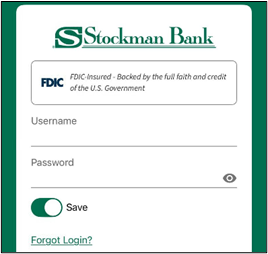
2. From the login screen, click the Save button, enter your personal account username and password, and log in.
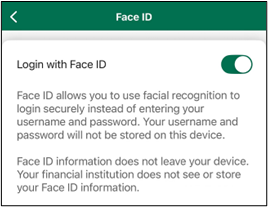
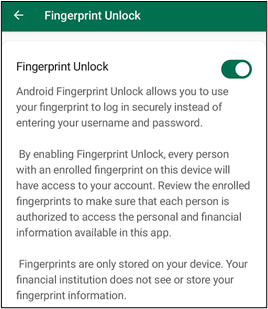
3. If you have not logged in previously, you will be prompted to enable biometrics. Select whether you want to use biometrics to log in or continue without. FaceID for Apple and Fingerprint Unlock for Android.
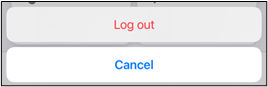
4. In the More section, click the Log out button in the upper right corner and confirm Log out.

5. Once back on the login screen, click the Save button again but this time entering your small business username and password, and log in.
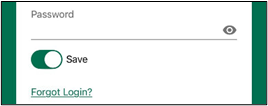
That's it! Once you've logged in to at least one personal and one business account with the Save button toggled on, you'll see an option to Switch profiles to the right of the username.
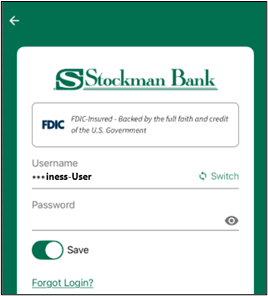
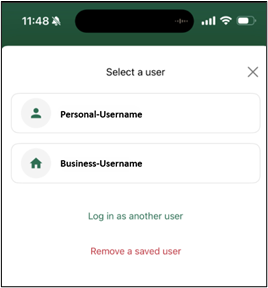
When you tap the Switch option, it shows the last personal and business accounts that logged on. The app can save two usernames, one personal (person icon) and one business (house icon).
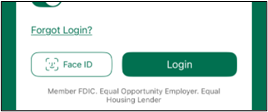
You have the option to sign in by using the biometrics your device utilizes if you chose to save this login method.
Thank you for taking the time to set up your accounts. You are now able to move between your Personal and Small Business accounts within one app!